VoiceOver allows you to use your iOS device even if you cannot see the screen. It gives audible descriptions of what is on your screen and lets you interact with different elements using VoiceOver gestures.
How to enable VoiceOver
There are multiple ways to enable VoiceOver when you are using the AGL app:
- Go to Settings > Accessibility > VoiceOver, then turn the setting on.
- Triple-click the side button or the Home button (if there is one).
To activate this shortcut, go to Settings > Accessibility > Accessibility Shortcut, then make sure VoiceOver feature is selected from the list.
- Activate Siri by holding the side button or the Home button (if there is one) and say “Turn on VoiceOver”.
For more information, visit https://support.apple.com/en-gb/guide/iphone/iph3e2e415f/ios.
How to use VoiceOver in AGL app
Once VoiceOver is enabled and you are within the AGL app, you will be able to use this feature via different gestures. The most common gestures are Tap, Double-tap, and Swipe left, right, up, or down:
|
Action
|
Gesture
|
|
Select the next item
|
Swipe right
|
|
Select the previous item
|
Swipe Left
|
|
Select a specific item
|
Tap (on the item)
|
|
Activate/press the selected item
|
Double-tap
|
|
Scroll up on the screen
|
Three-finger swipe down
|
|
Scroll down on the screen
|
Three-finger swipe up
|
|
Return to the previous screen
|
Two-finger scrub (move two fingers on the screen, making a “Z”)
|
For more information on gestures, visit https://support.apple.com/en-gb/guide/iphone/iph3e2e2281/15.0/ios.
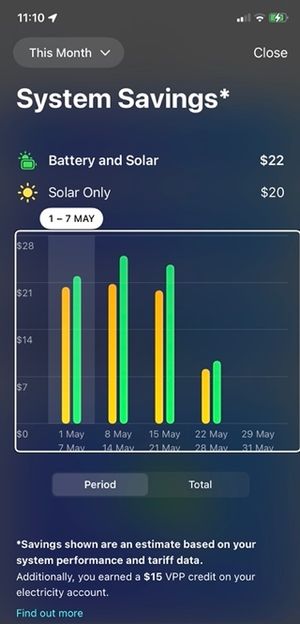
In addition, the AGL app enables customers using VoiceOver feature to interact with battery graphs and charts using Swipe up and Swipe down gestures. Below are instructions on how to use it:
- Once you are on any battery usage screen that contains a graph, swipe right or left until the graph is selected like below screenshot:
- Then, make sure “Adjust Value” is selected from the accessibility rotor (for more information on how to use the accessibility rotor, visit https://support.apple.com/en-au/HT204783)
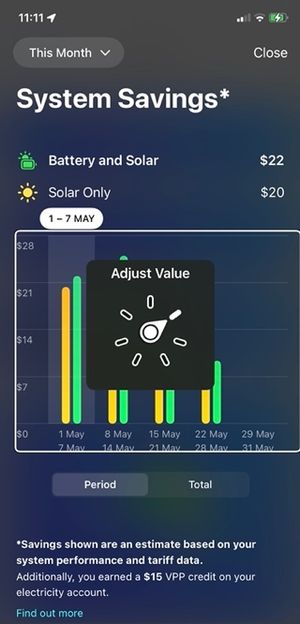
- Finally, Swipe up or down to adjust the selector on the graph. Once a new position is selected, the relative information will be spoken to the user.
NOTE: AGL app has also Audio Graphs enabled for charts and graphs that can be accessed via a different option from the accessibility rotor. For more information on how to use the Audio Graphs feature, visit https://neighbourhood.agl.com.au/t5/What-s-New/How-to-access-Audio-Graphs-on-iOS-devices/td-p/27238.